
Introduction
Printing multiple copies of a document seems simple until the pages come out mixed up. That’s where the collate option becomes essential. Understanding why collate matters in printing can save time, prevent mistakes, and keep your documents professional.
Whether you're printing reports, school assignments, contracts, or manuals, using the collate feature correctly improves efficiency and organization.
What Does Collate Mean in Printing?
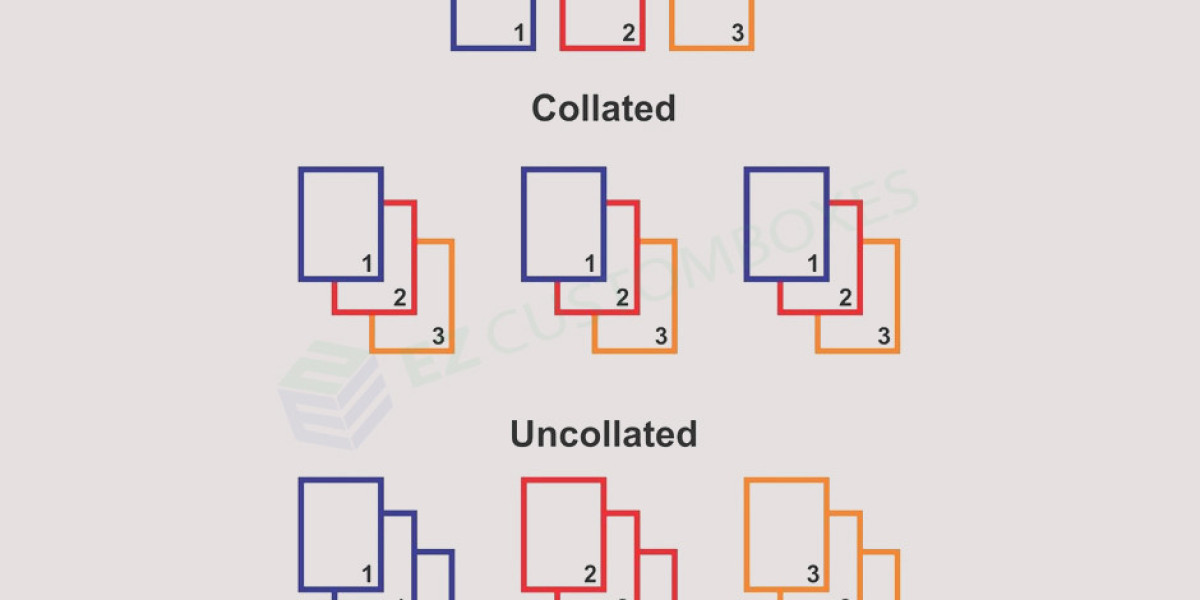
What does collate mean when printing. Collate means arranging printed pages in the correct order when printing multiple copies of a multi-page document.
Example:
If you print 3 copies of a 5-page document:
With Collate ON:
1-2-3-4-5
1-2-3-4-5
1-2-3-4-5
With Collate OFF:
1-1-1
2-2-2
3-3-3
4-4-4
5-5-5
Without collating, you must manually organize the pages.
Why Collate Matters in Printing
1. Saves Time on Large Print Jobs
Sorting pages manually takes time — especially when printing dozens or hundreds of copies. Collating automatically creates complete document sets.
Best for:
Business reports
Training manuals
School handouts
Presentation packets
2. Reduces Printing Errors
Uncollated pages can get mixed up or misplaced. Collating ensures:
Correct page order
Complete document sets
Fewer distribution mistakes
This is critical for legal documents, contracts, and professional reports.
3. Improves Professional Presentation
Neatly ordered pages reflect attention to detail. Whether for clients, students, or coworkers, organized documents build credibility.
Professional printing standards often require properly collated sets.
4. Increases Workplace Efficiency
In offices and schools, efficiency matters. Collating:
Speeds up document distribution
Eliminates manual sorting
Reduces staff workload
For high-volume printing environments, this feature is essential.
When Should You Use the Collate Option?
Use collate when:
Printing multiple copies of multi-page documents
Distributing reports or proposals
Creating training materials
Preparing meeting packets
When Not to Use Collate
You can turn it off when:
Printing a single copy
Printing one-page documents
Printing multiple copies of only one specific page
How to Turn On Collate
Most printers include the collate option in the print dialog box.
Steps:
Open your document.
Click File → Print.
Select the number of copies.
Check the box labeled Collate.
Click Print.
It’s that simple.
Frequently Asked Questions (FAQ)
What is collate meaning in printing?
The collate meaning, the printer prints all copies of each page before moving to the next page. You’ll need to manually sort the pages into complete sets.
Does collating slow down printing?
Slightly but usually not enough to matter. The time saved from manual sorting outweighs any small delay.
Should I always turn on collate?
Turn it on when printing multiple copies of multi-page documents. For single-page prints, it doesn’t make a difference.
Is collate important for large print jobs?
Yes. For high-volume printing, collating saves significant time and prevents page-order errors.
Key Takeaway
Understanding collate meaning printer helps you work smarter, not harder. It saves time, prevents mistakes, and ensures every document looks organized and professional.
Next time you print multiple copies, make sure the collate option is turned on — your workflow will thank you.
Printing multiple copies of a document seems simple until the pages come out mixed up. That’s where the collate option becomes essential. Understanding why collate matters in printing can save time, prevent mistakes, and keep your documents professional.
Whether you're printing reports, school assignments, contracts, or manuals, using the collate feature correctly improves efficiency and organization.